Exomars Rover Challenge
This activity is looking at some of the challenges we face when controlling robots on Mars.
Background
Aberystwyth University is one of the UK's leading research institutes on Space Robotics.
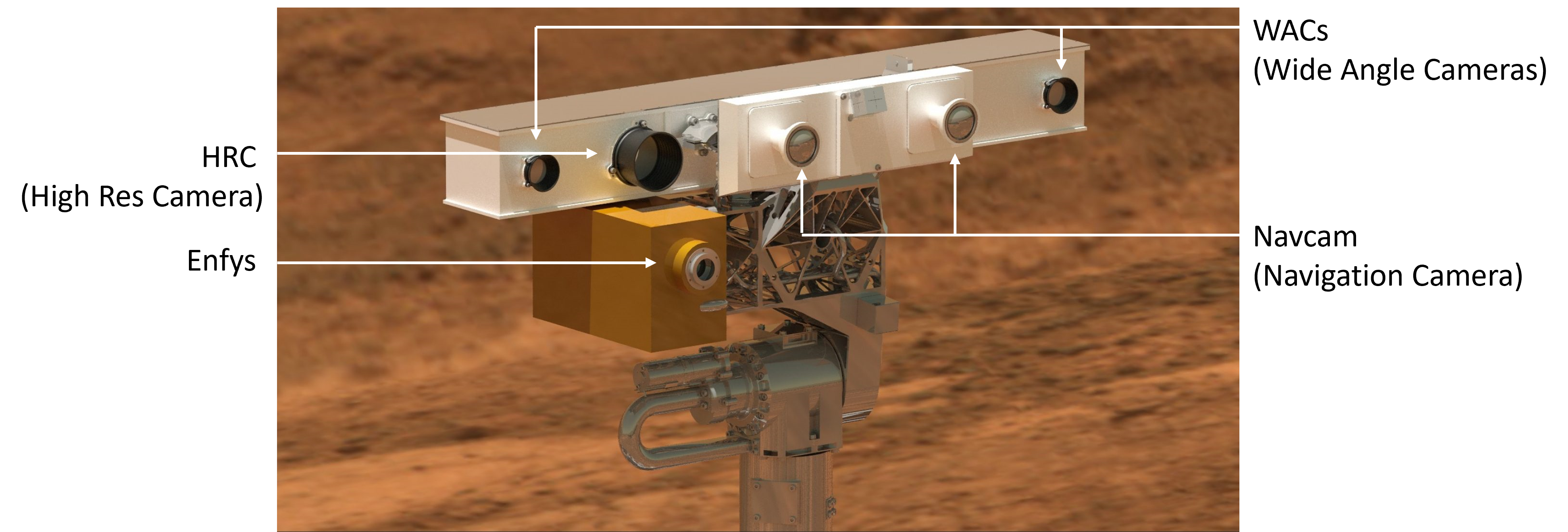
We have been involved in several projects, the most recent being the development of the PanCam camera and Enfys spectrometer for the European Space Agency's Exomars rover, the Rosalind Franklin.
Exomars, short for Exobiology on Mars, is a European Space Agency project which aims to look for signs of past life on Mars.
Another related objective is to study the atmosphere and geology of Mars.
The mission is made up of three spacecraft:
- Trace Gas Orbiter - a satellite orbiting Mars launched in 2016
- Schiaparelli - a Mars landing test module launched alongside the Trace Gas Orbiter.
- Rosalind Franklin - the Mars rover due to launch in 2028.
Aberystwyth's involvement
There are many companies and research institutes involved in making this happen.
Here, at Aberystwyth University, we are involved in two main projects, both on the top of Rosalind Franklin's mast.
-
PanCam:
- Three cameras which can see 11 different colours (humans can only see three!)
- A calibration target made of stained glass - so we will be able to see what known colours look like on Mars. This will allow us to correct any and all images produced by the camera.
- The software to operate the cameras and calibrations.
Enfys: A laser spectrometer, built at Aberystwyth University, which can be pointed at a rock to tell us what it is made of.
Here is an image of the rig mounted on the Rosalind Franklin's mast:
Controlling a vehicle on Mars
Mars is very, very far away - with a distance ranging from 34,000,000 miles and 250,000,000 miles.
This means it can take between 3 and 22 minutes to send a communication, even at the speed of light.
Another complication is that the rover needs to be under the orbiter to receive a message, which only happens during a couple of short time periods each day.
So, we cannot just drive the rover with a remote control.
Instead, we will upload a series of commands each day after checking the results of the previous program and planning accordingly.
The biggest challenge is that robots (including rovers) are computers and computers are really, really stupid.
We must give them clear and detailed instructions about everything. If we miss one thing, the robot will not be able to deal with it.
AI systems are not yet able to help with this as they are trained using existing information and sometimes go wrong in unpredictable ways.
Your turn...
Our computer science department have developed a game that lets you control an Exomars rover in a grid world and use it to search for alien life.
Click here to open the game in a new browser tab.
Our challenge to you:
Program the rover to search the entire grid world for all signs of alien life.
Additional challenge:
The game includes a counter for the total number of actions taken, which it prints in the robot output when the program stops. How low can you get this count whilst also completing the challenge?
Click on the headings below to find out more on each topic.
The game controls
Grid world:
This is the simulator for your program. Initially the robot starts in the top left corner square facing right. There is an L-shaped obstacle in the middle of the grid.
Each time the robot scans one of the grid squares, it will either show up as yellow (no life found), or green (alien life detected).
If your program is successful, all the grid squares should be coloured in either yellow or green.
Manual Controls:
Beneath the simulator, there are some blue buttons which will manually allow you to move the robot around the simulator and conduct scans.
This would be the same as using a remote control - which is not possible on Mars - however, we have included these to help with idea development.
Programmed Actions:
This is the programming area where you will need to write all your commands for the robot.
Add Actions:
These four buttons are likely to be the commands you will need to use the most in this challenge. They provide a quick way to add them to the program, rather than typing them every time.
Program Controls:
Where you can run, tidy, clear, or stop your program. There is also a Reset World button which will return the simulator back to its starting position and clear all scans.
Robot Output:
There is a text box at the bottom of the page that shows a log of the robot's actions.
If there is an error or mistake in your code it will show you the details here.
You can program your rover to 'print' or 'say' things, and they will also appear in this window.
Basic commands
forward - moves the rover forward one grid square.
left or turnleft - turns the robot left by 90°
right or turnright - turns the robot right by 90°
scan - scans for life-forms
print "text" - prints the message inside the quotation marks to the robot output
stop - terminates (ends/stops) the program
Below is an example program you can copy to help learn the basic controls.
  scan
  forward
  scan
  forward
  scan
  right
  forward
  scan
  forward
  scan
  right
  forward
  scan
  forward
  scan
  right
  forward
  scan
  forward
  print "I travelled in a square!"
Using loops
Your program is going to be very long if we write out every single instruction. Instead, we can use loops that allow us to repeat the same actions.
begin - starts an infinite loop.
begin 10 - start a 10-times loop (you can use any number here).
end - ends the loop.
leave - forces the program to leave the loop early.
Below is an example program you can copy to help learn about using loops in your program.
  begin 4
    forward
    scan
    forward
    scan
    right
  end
  print "I travelled in a square!"
  stop
As this program still repeats the same two lines twice, we could put a second loop inside the first:
  begin 4
    begin 2
      forward
      scan
    end
    right
  end
  print "I travelled in a square!"
  stop
If statements
If statements are used to tell the robot to do something only if a condition is met
if condition - starts an if statement
endif - ends the if statement.
Here is an example of using an if statement for you to test. This is an infinite loop so you will need to use the 'Stop Program' button in the Program Control.
  begin
    scan
    if blocked
      turnright
    endif
    forward
  end
Conditions
These are the recognised conditions for the if statements:
blocked - the square in front is either outside the grid or contains an obstacle.
facingscanned - the square in front has already been scanned.
onscanned - the square that the robot is in has already been scanned.
movingright - the robot is moving right on the grid.
movingleft - the robot is moving left on the grid.
movingup - the robot is moving up the grid.
movingdown - the robot is moving down the grid.
allscanned - all squares have been scanned.
If-else statements
An if-else statement allows us to command the robot to do one thing if it meets a condition and something else if it doesn't.
else - can be used in an if statement to give instructions if none of the other conditions are met.
Here is an example for you to test.
  begin
    if blocked
      right
    else
      forward
    endif
  end
Opposite Conditions
not - can be used in an if statement to to give instructions if a condition is not met.
Here is an example for you to test.
  begin
    if not blocked
      right
    else
      forward
    endif
  end
If-else-if statements
else if condition - can be used in an if statement to check for different conditions
Here is an example for you to try:
  begin
    scan
    if blocked
      turnright
    else if facingscanned
      print "I've done the perimeter!"
      stop
    else
      forward
    endif
  end
Randomness
Sometimes we may want to randomise a program's output.
We have included two approaches for you:
-
cointoss- this is a condition that allows us to have two possible outcomes.Here is an example of how it can be used:
begin if cointoss turnleft else turnright endif forward end -
roll- a command that will pick a random number between 1 and 6roll 20- a command that will pick a random number between 1 and 20 (or whichever maximum number you choose)rolled 3- a condition that is asking if the random number selected usingrollis 3 (or whichever number you use)Here is an example you can use to test this:
  begin
    roll 4
    if rolled 1
      forward
    else if rolled 2
      left
    else if rolled 3
      right
    else
      print "rolled a 4!"
    endif
  end
Additional Information
For more examples and some additional information on using this application, please use the Program Help button in the game's program controls.