Micro:Bit Maqueen: Remote Control
This activity is designed as part of a workshop offered by our outreach team.
Getting Started
For this, you will be working in groups of four. One pair will be working on the remote control, whilst the other programs the robot.
First of all, you will need a 'New Project' on Makecode
IMPORTANT: Before you start your program
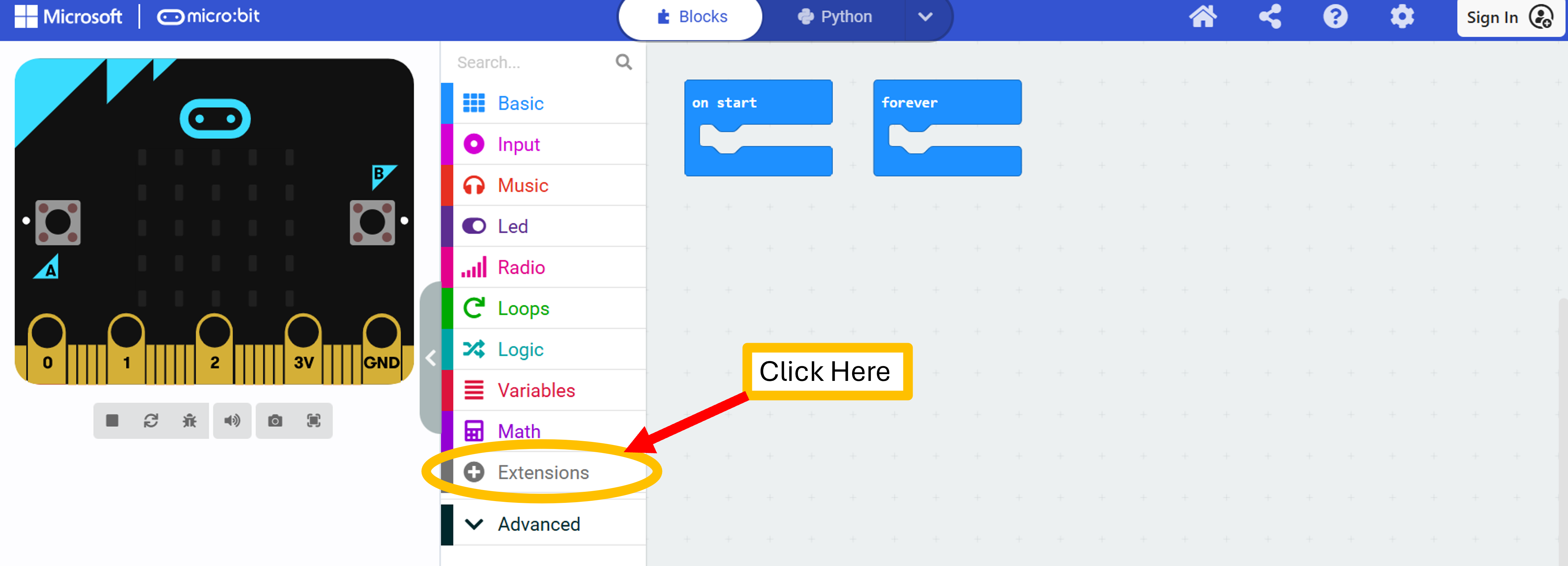
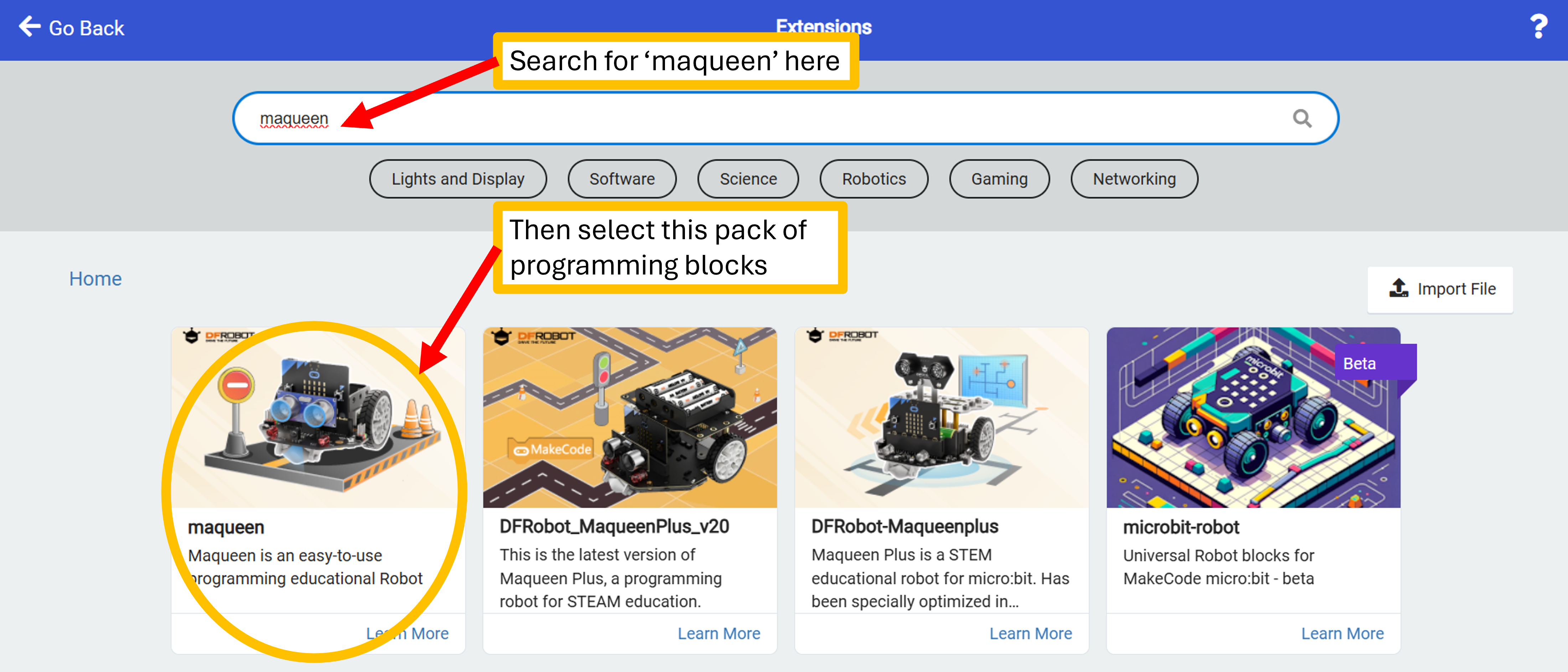
You will then need to go to 'Extensions' in the block menu. If you are programming the robot - search for 'maqueen' and click on the "maqueen" option. If you are programming the remote control, search for 'game controller' and select "kitronik-game-controller".
There are lots of different devices and robots for Micro:Bits. Each one has their own set of programming blocks which we need to add to our program.
Step 1: Look for and click on the 'Extensions' options underneath 'Maths' in the block menu.
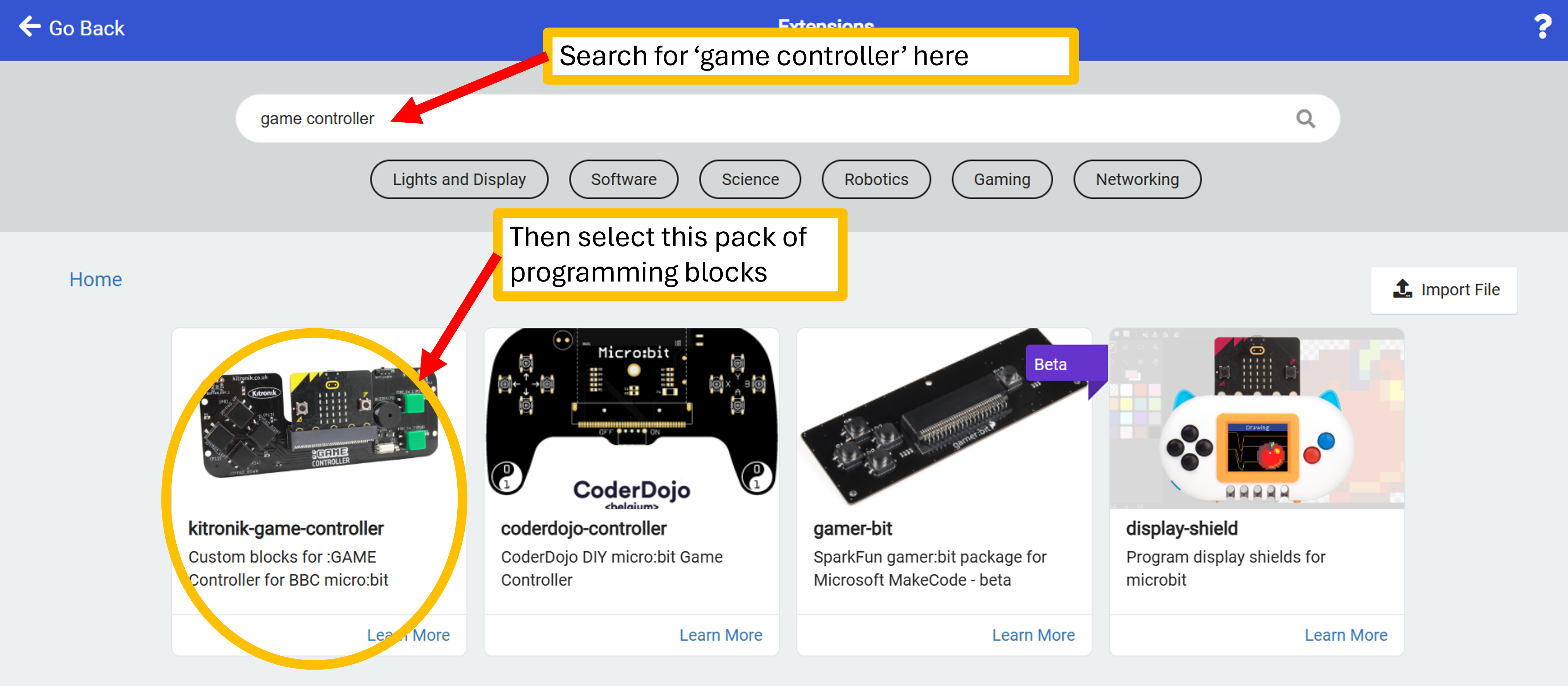
step 2: Search for and select the extension you need.
For the remote control program: you need to search for 'game controller' and click on the kitronik-game-controller option.
For the robot's program: you need to search for 'maqueen' and click on the maqueen option.
Now, you have all the blocks necessary for this challenge.
The 'on start' program
As you will be working as a team, you will need to start your programs with a way to tell which Micro:Bit is the controller and which is the robot. This can be done with a short message or a picture.
As your Micro:Bits will need to talk to each other you will also need to agree on a radio group - this can be any number between 1 and 255.
Both of your programs will need a 'radio set group' block with the same value inside the 'on start' program.
Change the radio group number and message (string) to match what you need.
Select the program you're working on to get started.
The Remote Control
Your job is to have the program send a different number (using the radio) depending on the button pressed.
You will be using a Kitonik Game Controller that your Micro:Bit plugs into.
The controller has labels on each button that match with the block options.
Inside your forever loop, you will need to use an if statement with lots of else if statements - enough for each button you wish to use.
You will need at least 3 more else if statements. You can add more using the + symbol at the bottom of the block.
Remember to replace each # with the number you want to use for that control.
You will need to let the other pair in your team know what the robot should do for each number.
The actions need to include: Stop, Forward, Backwards, Left, and Right.
If you finish first, look at adding images to the screen for each button used.
The Robot Motors
Instead of a forever loop you will be using a 'on radio received receivedNumber' block. Inside this, you will need an if statement with lots of else if statements - enough for each number being sent from the remote control.
To use the 'receivedNumber' block inside the if statements, click and drag it from the 'on radio received' block to create a copy.
You will need at least 3 more else if statements. You can add more using the + symbol at the bottom of the block.
Remember to replace each # with the correct number for that movement.
You will need to speak to your team-mates to find out which numbers it should be receiving and what the robot should do with each one.
You will be using the motor blocks from the Maqueen v4 menu.
For each instruction you will need to program both motors.
Forward
Turn
Spin
Stop
Testing
Plug your Micro:Bit into the computer.
Important: Do not have the Micro:Bit plugged in to anything else at the same time as the computer - this can damage it.
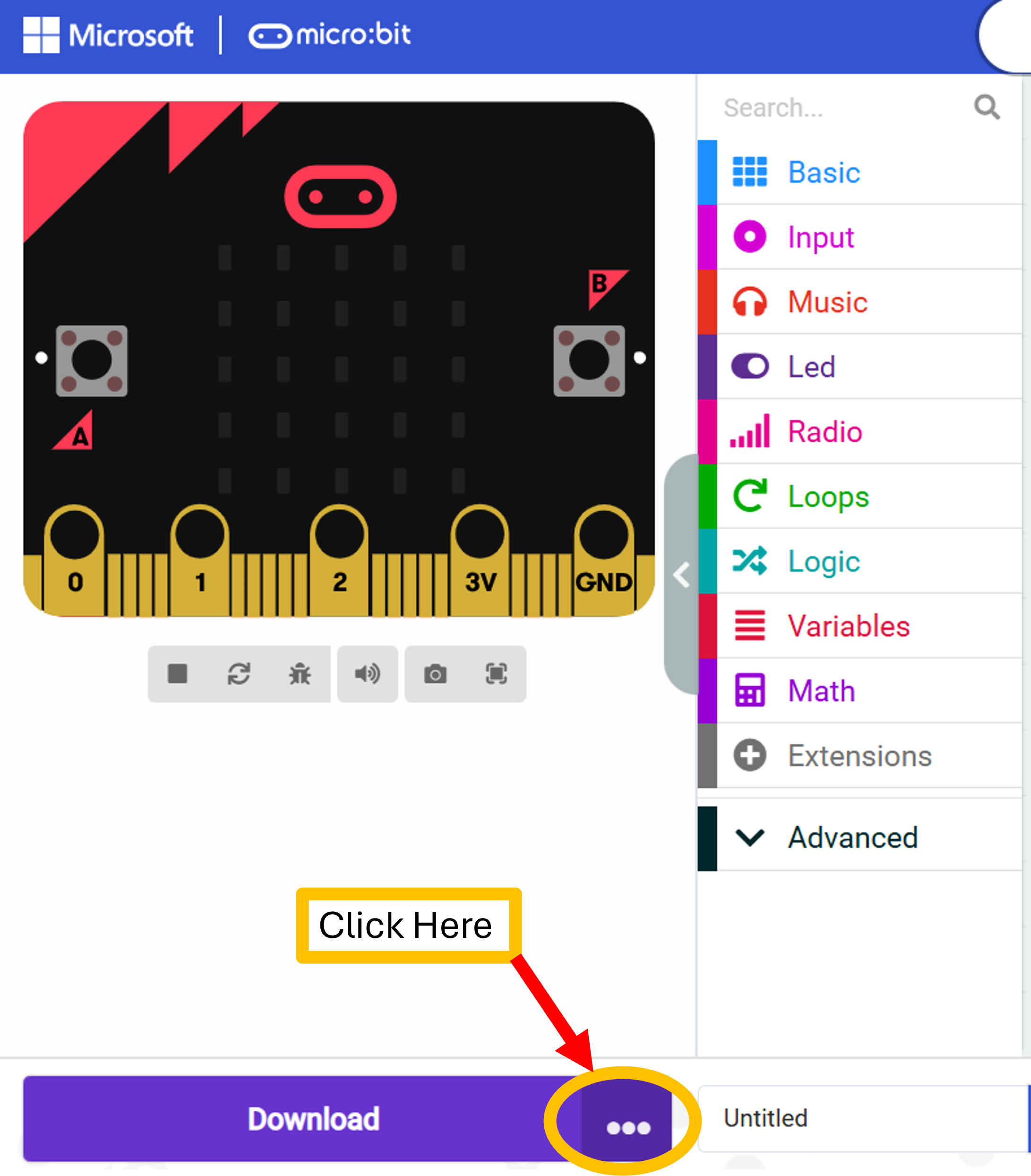
In the bottom left of your Makecode program there is a big blue button labelled 'download' with a darker section labelled '...'. You need to click on the three dots and select 'Connect Device' from the menu that appears. Click Next, click pair, click on the device listed and then click Connect.
Step 1: Click on the '...' next to the download button.
Step 2: Make sure your Micro:Bit is plugged in as shown and then click 'next'.
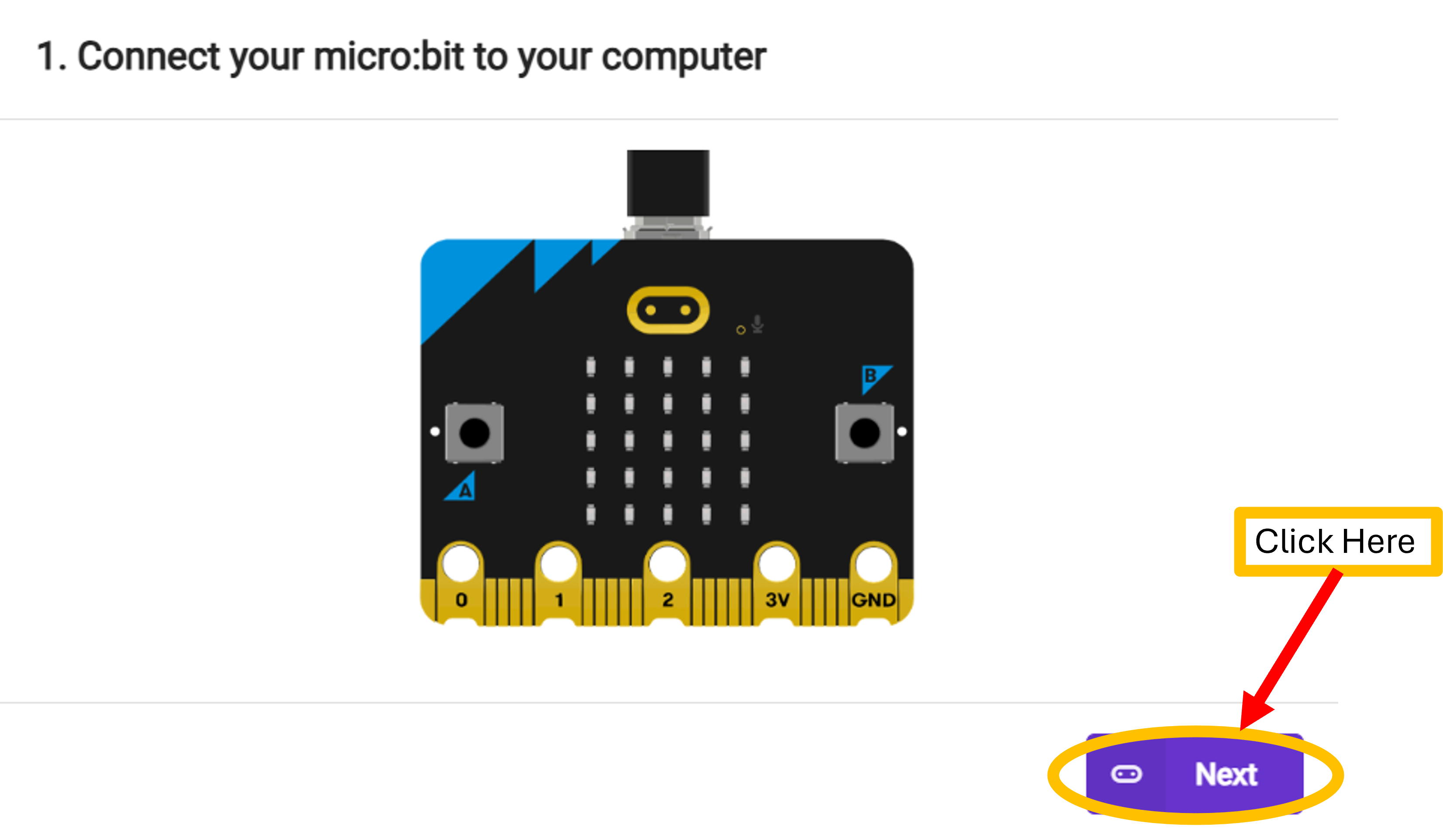
Step 3: Watch the instructions for what to do next, and then Click on 'Pair'
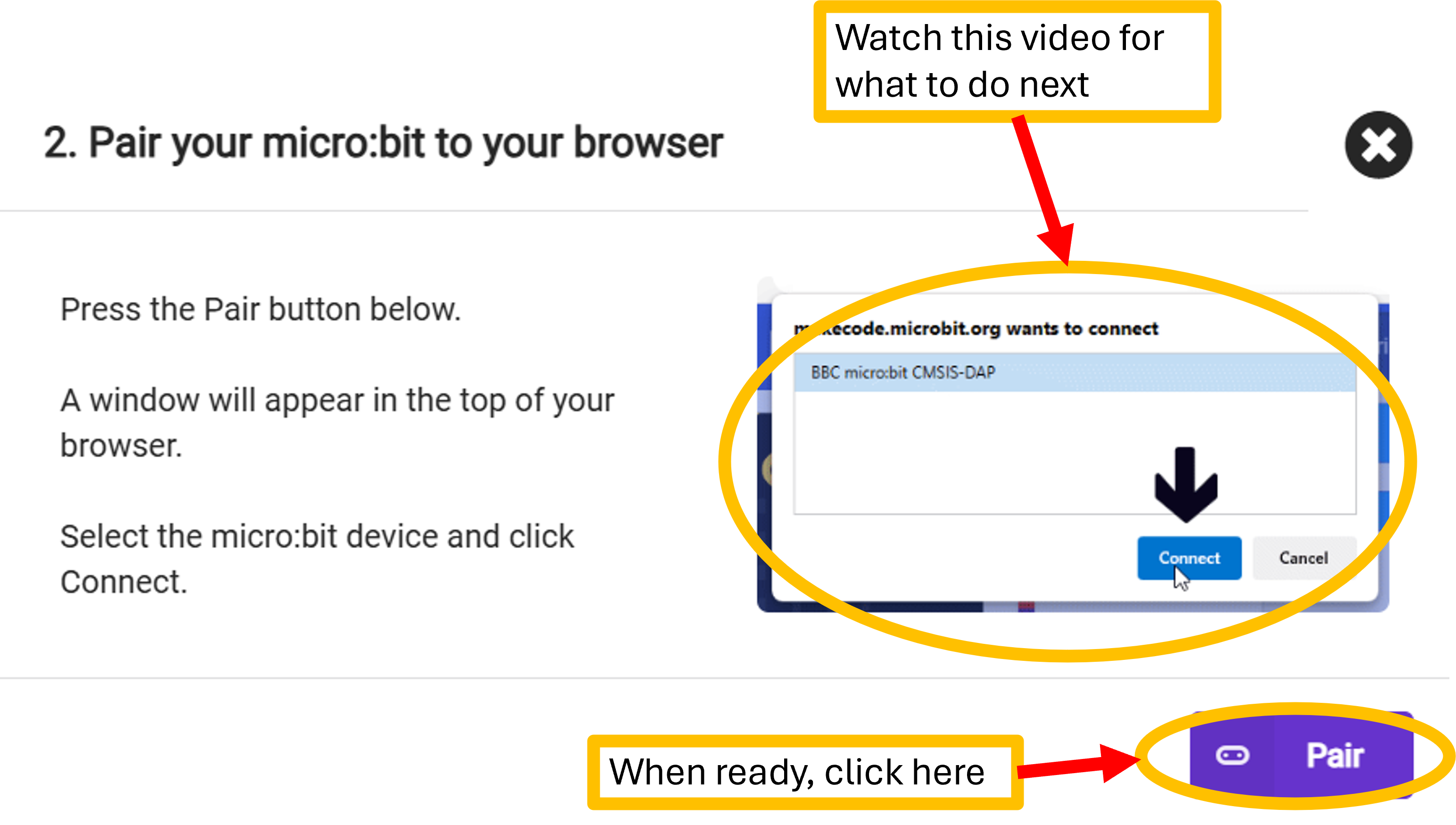
Step 4: Do as the instructions showed you in step 3.
Now, you can click on the big blue download button to copy your program to the Micro:Bit.
Once the download is complete, unplug the Micro:Bit and insert it into the correct hardware (the controller or the robot).
Turn on the remote control and the robot - make sure the robot is on the floor in a safe area when turned on to make sure it doesn't accidentally fall or get crushed.
Can you drive it around easily?
You can change the programs if you are not happy with them.
Ready for the next challenge?